
Open Ask Yes Chef
Where the chat is on the web and on the iPhone, how to open and close it, and how to get back to the ordinary screens.
Ask Yes Chef is a chat inside the app. On the web it opens beside whatever page you are on. On the iPhone it takes the place of the tab bar until you switch it off again.
On the web
- Press Ask Yes Chef near the top of the sidebar, or press ⌘ J on a Mac (Ctrl J on Windows). In a narrow window there is no sidebar: press the chef’s hat in the top bar, beside the bell.
- The chat opens on the right. On a wide screen the page moves over to make room, and you can drag the chat’s left edge to make it wider or narrower. On a smaller screen it sits over the page.
- Type in the box marked Ask Yes Chef and press Enter, or press one of the questions offered above the box.
- To close it, press Close (the cross at the top of the chat) or the same shortcut again. The page you were on is as you left it.
The chat is about one location. If you work at more than one, the location’s name at the top of the chat is a menu: pick another to ask about that one. Each location has its own conversation.
On the phone
- Open the first tab. It is called Hub if you see the manager’s dashboard and Today if you do not.
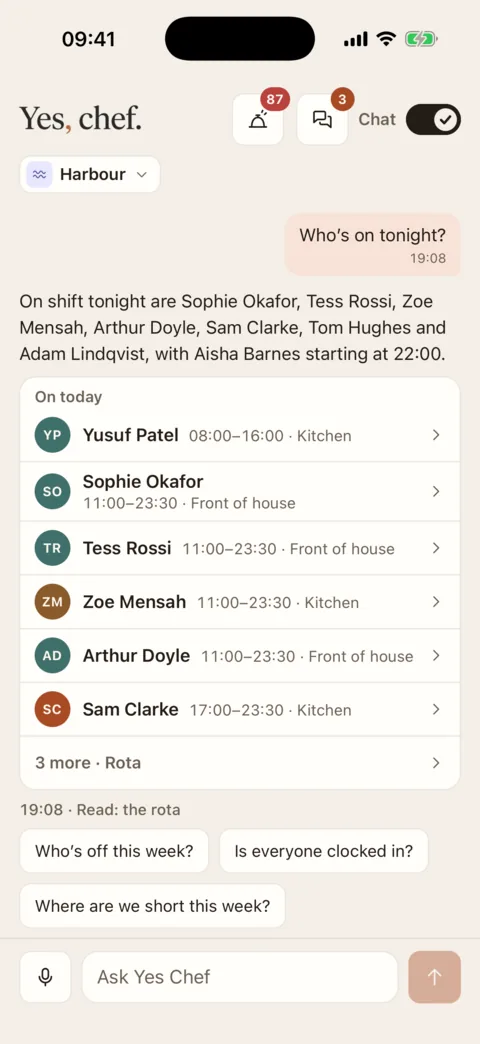
Chat mode. The Chat switch at the top right turns it off again. Demo data - At the top right, flick the Chat switch on. The tab bar goes and the conversation takes the screen.
- Type in the box marked Ask Yes Chef, press the microphone to speak, or tap one of the questions offered.
- To go back to the tabs, flick Chat off. It is in the same place.
While chat mode is on, the bell and Messages are at the top of the conversation, and any screen a card opens has a back arrow that returns you to the conversation. The phone remembers whether you left chat mode on.
What you see before you ask
The chat opens with a greeting and a line about your day: what needs you if you run the shift, or when you are next in if you do not. Under it are a few questions to tap. Which ones depends on what you are allowed to see: a manager is offered What needs me? and Who’s on tonight?; someone on the team is offered When am I next in? and Who’s on with me today?.
If it doesn’t work
- There is no Ask Yes Chef row in the sidebar
- The row is left out when you may not ask about the location picked in the sidebar: it is not one you work at, and you hold no permission there. Pick one of your own locations.
- “You can’t ask about this location.”
- The chat was left open on a location that is not yours. Change the location at the top of the chat, or in the sidebar.
- “No location yet”
- You have not been put at a location. Ask your manager to add you to one.
- “You’re offline.”
- The box is shut while there is no connection. It opens again when you are back online.
- “Ask Yes Chef isn’t switched on yet.”
- The chat is switched off for now. Write to omar@1273.co.uk if it stays that way.
Was this the right page?
If it did not answer your question, or the app does not match what it says, email us and we will put it right.