
Ask it to do something
Ask the chat to add a shift, book time off, send a message or mark someone sick. It sets the change up on a card and nothing happens until you press the button.
On this page
The chat never changes anything by itself. When you ask for a change, it puts a card under its answer with what it has set up and one button. The change is made when you press that button, and not before.
- Say what you want, with the details: “Put Sam on front of house next Monday, 5pm to 11pm”, “Book me the 3rd to the 5th of November off”, “Mark James as a no-show”.
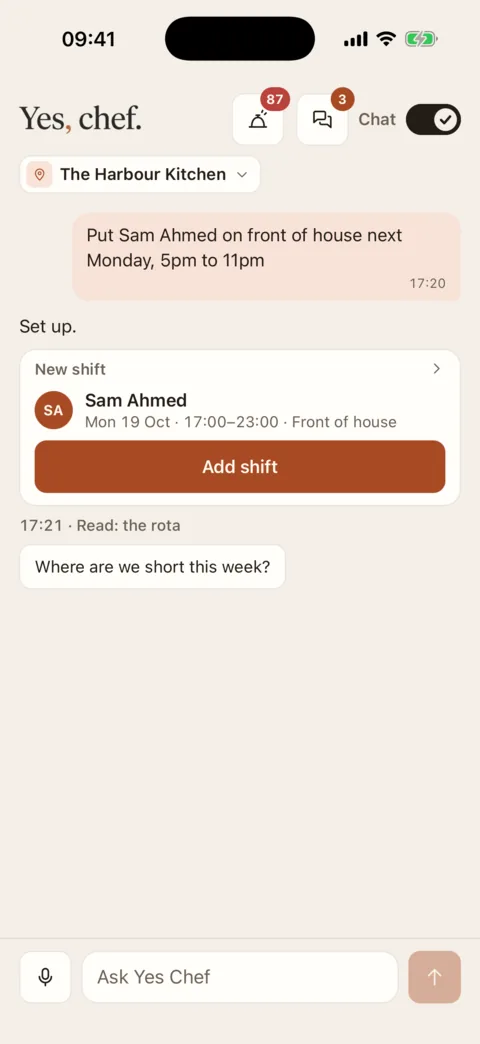
The card is the change. The button makes it. Demo data - Read the card. It shows exactly what will be saved: who, when, where. The answer above it is short, usually “Set up.”, and mentions anything it chose for you or could not do.
- If it asks which person or which shift it should use, answer. It asks when a name matches more than one person.
- Press the card’s button. The button says what it does and who will be told, for example Add shift or Change shift · Sam told.
- The button is replaced by a green stamp saying what was done. That is how you know it went through.
If the card is wrong, do not press it. Ask again with the correction: a new card of the same kind takes the old one’s place.
One tap, or two
Most cards take one tap. Two kinds take two:
- Anything deleted. Deleting a shift, a task or a comment, and changes to a task board that take something from other people. The button is drawn in red. The first tap turns it to Tap again to delete (or to archive, clear, remove); the second does it. If you do not tap again within four seconds, it goes back.
- A card with several rows. See Tell it several things at once.
What you can ask it to set up
For yourself
- A time-off request. Button: Request.
- A message to a person, a group or the team chat. Button: Send.
- Asking a colleague to take one of your shifts. Button: Ask with their name.
- Your weekly availability. Button: Save availability.
- Completing a check. It asks you for each reading or tick, one field at a time, and reads them back before you press Mark complete. “All fine” is not accepted as an answer for a check.
- A new task, or a change to one: done, reopened, moved, commented on. For anyone who can see the task boards.
On the rota
- A new shift, a change to a shift, deleting a shift. Needs “Build and edit the rota”; on a published week, also “Change a published rota and shifts that have started”.
- Publishing a week. Button: Publish with how many people are told. Needs “Publish the rota”.
- Offering a shift out as an open shift. Needs “Offer out open shifts”.
- Marking someone sick or a no-show, and clearing that mark. Needs “Record no-shows and absences”.
- Clocking someone else in or out. Needs “Edit clock-in and clock-out times”.
For the site
- Approving the waiting timesheets together. Button: Approve with the number. Needs “Approve timesheets” or “Approve clock-ins”.
- The day’s briefing. Needs “Write pre-shift briefings”.
- The day note on the rota. Needs “Build and edit the rota”.
- A broadcast to the team. Button: Send broadcast with how many people it reaches. Needs “Send broadcasts to the whole team”.
- Changes to a task board or its lists. Needs “Create and edit boards and lists, and delete tasks”.
Things it only sets up when you ask in so many words
It will not suggest these, and will not set one up because an earlier answer pointed that way. You have to ask for exactly that: deleting a shift, publishing, a broadcast, offering a shift out, clearing a sick or no-show mark, approving timesheets together, a briefing, and changes to a task board. When it does set one up, it says who it reaches and what it takes away.
The words are yours
It does not write messages, broadcasts, briefings, day notes or task titles for you. If you say “message the team” without saying what, it asks what the message should say. It passes on what you said, tidying spelling at most.
Approving, declining, clocking in
For these it does not set up a card of its own. It finds the request and shows its card, which has the same buttons as the rest of the app: Approve and Decline on a time-off request or a swap; Approve on a timesheet; Accept on a swap a colleague has asked you to take; Take shift on an open shift; Clock in and Clock out on your own shift today. Ask “clock me in”, “any time off to approve?” or “any shifts going?” and press the button on the card.
If it doesn’t work
- It says it cannot do that
- You do not hold the permission the change needs at this location. The chat has exactly the permissions you have in the rest of the app. An Admin can change them.
- The card shows a sentence instead of a stamp
- The server refused the change, and the sentence is its reason, the same one the ordinary screen would give: a shift that overlaps another, approved time off on that day, a week already published. Fix the cause and ask again.
- “That didn’t work. Try again.”
- The connection dropped part-way. Press the button again. A change is never made twice: once a card is stamped, its button is gone.
- “You’re offline.” on every button
- Buttons are shut while there is no connection, so that nothing is sent later with nobody looking. They open again when you are back online.
- The button went back to its first words
- A delete waits four seconds for its second tap. Tap, then tap again.
- It set up the wrong person
- Names said aloud are sometimes misheard, and two people can share a first name. Give the surname, and do not press the card. See When Ask Yes Chef gets it wrong.
Was this the right page?
If it did not answer your question, or the app does not match what it says, email us and we will put it right.