
Add a shift
Put someone on the rota from the web or the iPhone, and what Yes Chef does when the shift clashes with another shift or with time off.
A shift is one person, in one area, on one day, from a start time to an end time. While the week is a draft, nobody on the team can see what you add. They see it once the rota is published.
On the web
Go to Rota & team, then Rota
- Pick the location and the week. The rota opens in the Days view; the menu labelled View schedule by changes it to Areas or People.
- In the Days view, press the dashed plus under the day you want. A small New shift box opens. In Areas or People, click an empty cell in a person’s row (or + Add shift in a cell that already has one) and the full New shift form opens.
- Choose who under Staff. In the full form you can tick several people to give them all the same shift.
- Check the Date and Shift type, and choose the Area. An area the person does not work is greyed out.
- Set Start and End. The full form also has Notes, for anything they should know for the shift. To reach it from the small box, press Open full editor.
- Press Save in the small box, or Add shift in the full form. It says Shift added and the shift is on the rota.
On the phone
The Rota tab is on the bar for people who can build the rota.
- Open Rota and go to the week. In Week view, press the plus under the day, in the area the shift is for. In Day view, press + Add shift, or the row that begins + Add to with the area’s name.
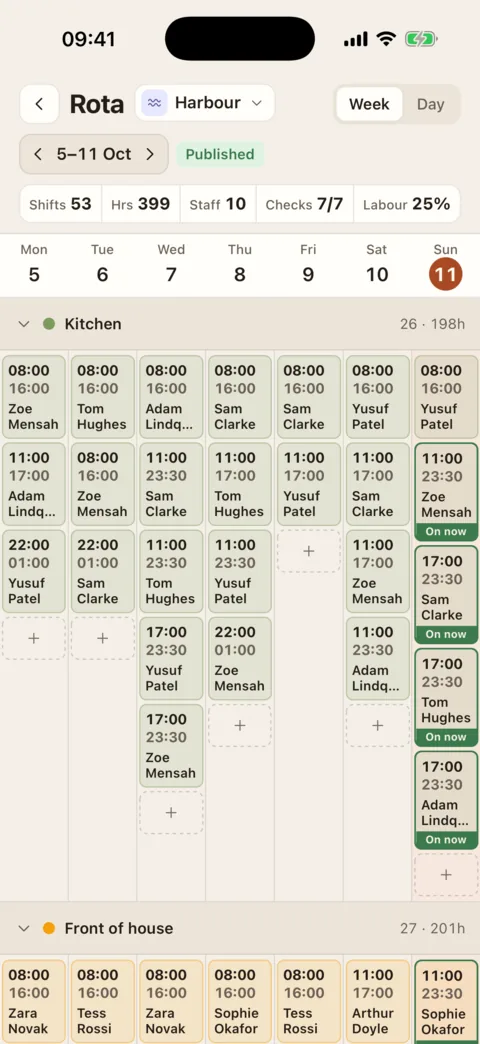
Week view. The dashed plus adds a shift to that area on that day. Demo data - The Add shift sheet opens. Pick who under Staff. You can pick several people. Anyone who does not work the area is greyed out.
- Check Day, Shift type and Area.
- Type the start and end under Time, in 24-hour time: 09:00, 17:30.
- Add Notes (optional) if there is something they should know.
- Press Add shift. It says Shift added.
What happens next
- On a draft week, nobody is told and nobody on the team sees the shift. When the week is ready, press Publish on the web or Publish week on the phone. Publishing needs the “Publish the rota” permission, which Location Managers and Admins have by default.
- On a week that is already published, the shift goes live straight away and the person is told in their inbox, and on their phone if alerts are on. Adding to a published week needs the “Change a published rota and shifts that have started” permission, which Location Managers and Admins have by default and a Supervisor can be given.
If the shift clashes
- Another shift at the same time. It is not saved. Draft shifts and shifts at your other locations count. On the web the form tells you before you save, for example “Sam is already on a shift then”, with “Change the time or pick someone else to save.” On the phone you find out when you press Add shift: Could not save, with the shift it overlaps.
- Approved time off. It is not saved. The web says the person “has approved time off then”, with the dates.
- A day they said they cannot work. This is shown, not stopped. The web tints the cell; the phone marks the person with a dot (Can’t this day). You can still add the shift.
If it doesn’t work
- There is no Rota page, or no Rota tab
- You do not have the “Build and edit the rota” permission. An Admin can switch it on for a Supervisor or a manager. It cannot be given to an Employee.
- “This rota is published. Changing it takes the rota override permission.”
- The week has gone out to staff, and changing it takes a further permission. Ask a Location Manager or an Admin to add the shift, or to give you the permission.
- The person is not in the list
- The list has only people who work at this location. Their home location, or one of their additional locations, has to be this one.
- The area is greyed out, or the person is
- They are not assigned to that area. Pick an area they work, or change their areas first.
- “The end time needs to be after the start time.” or “Invalid time”
- The end is the same as the start or earlier. On the phone, also check both are written as 24-hour times, like 09:00 or 17:30.
- You cannot save and nothing says why
- On the web the form needs a person and an area: it says Pick an area or asks for at least one staff member. See also where things are if a page is missing.
Was this the right page?
If it did not answer your question, or the app does not match what it says, email us and we will put it right.