
Change several people at once
Tick people on the staff list and make one change to all of them: a site, an area, pay, contract hours, training, a message, an invitation or offboarding.
On this page
A bulk action makes the same change to everyone you tick. Each person goes through the same rules as if you had opened their record, so one person the change cannot be made for does not stop the rest: you are told who, and why.
On the web
Go to Rota & team, then Staff
- Tick the box at the start of each person’s row. The box in the heading ticks everyone the list is showing, so filter or search first to narrow it down. People who have left cannot be ticked.
- Press Bulk actions and choose what to do.
- A small dialog opens, headed with the action and how many people it is for. Fill in the one thing it asks.
- Press Apply (Send for a message or an invitation, Offboard for offboarding).
On the phone
- Open Team and stay on Roster. Press Select, or press and hold on a person.
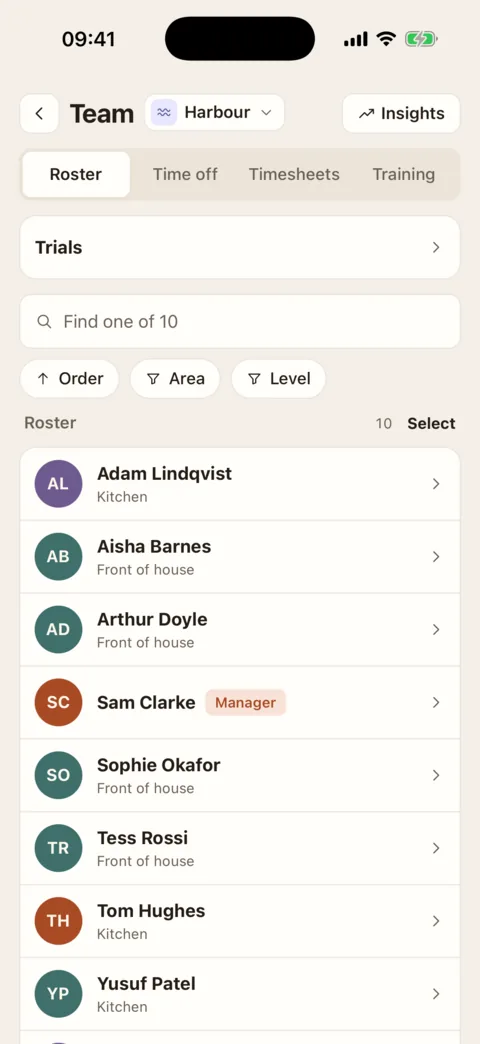
Select is at the top of the roster. Demo data - Tap each person to tick them. All ticks everyone the list is showing; None clears them.
- Press Actions and choose what to do.
- Fill in what it asks and press Apply. Back returns to the list of actions.
What each action does
- Add location: puts them on at another site as well as where they already work. See Move someone to another site.
- Add area and Add position: adds one area or position to each person. It only applies to people who work at the site the area or position belongs to.
- Set level: gives them all the same permission level. Changing levels is for Admins.
- Add training: puts them on a training. Tick Timed, from today to start its clock now. Needs the “Manage training and sign people off” permission.
- Send message: sends the same message to each of them as separate chats. People who can manage group chats can tick One group chat and give it a Group name instead.
- Set pay: an hourly rate or a yearly salary for all of them. Needs the “See and edit staff pay rates” permission. See Set someone’s pay.
- Set contract hours: the Contract and its Hours a week.
- Set holiday: Holiday a year, hours. Leave it empty to go back to the figure worked out from each person’s contract.
- Offboard: one last day and reason for all of them. See Offboard a leaver.
These three are on the web only:
- Holiday brought in: holiday earned and taken in the system you used before. Pick the As at date and type each person’s Earned, h and Taken, h. Anyone left blank is not changed.
- Send invitation: for people who are on the list and have no sign-in yet. See below.
- Export: downloads the ticked people as a CSV file, for people who can edit staff details.
Invite people who are already on the list
When we bring a team in from another system, each person is on the staff list before they have a sign-in. To let them in, tick them and choose Send invitation. The dialog lists who an email will go to and the address it goes to, and counts anyone left out: already invited, or joined or no email. Press Send.
When they accept, their new sign-in takes over the row they already have, so nobody is on the list twice. To see where everyone stands, switch on the Invitation column from Columns: Joined, Invited or Not invited. Send invitation is greyed out when nobody you ticked is waiting for one.
How you know it worked
A message names the action and says how many people it was done for, for example Set pay with “3 people”. If it could not be done for some, a second message says how many were not changed and lists each name with the reason. The ticks are cleared.
If it doesn’t work
- An action is missing from the menu
- You do not hold its permission. Without the permission to edit staff details the menu has no location, area, position, level, contract, holiday or offboarding; without pay rates there is no Set pay.
- “Doesn’t work at that site”
- The area or position belongs to a site that person does not work at. Add the location to them first, or pick an area at their own site.
- “You can’t add people at” a site, or “Only an admin can put a manager or supervisor on at” a site
- The same rules as moving one person. See Move someone to another site.
- “No areas set up”, “No positions set up” or “No training set up here”
- There is nothing to pick yet at that site. Set it up first, then come back.
- On the phone: “Choose someone other than yourself”
- You ticked only yourself and chose Send message.
- An invitation: a name with “No location”
- That person has no home site and there is no site to invite them at. Give them a site on their record, then send the invitation again.
Was this the right page?
If it did not answer your question, or the app does not match what it says, email us and we will put it right.