
Edit someone’s details
Open a person’s record and change their name, contact details, contract, the areas they work and their position, on the web or the iPhone.
On this page
Everyone on the team has a record. The web has all of it; the iPhone has the parts a manager most often changes on the move. For pay, see Set someone’s pay; for the sites they work at, see Move someone to another site.
On the web
Go to Rota & team, then Staff
- Find the person. Search people looks through names, preferred names, emails and phone numbers.
- Click their name. Their record opens in a panel over the list, with a tab for each part of it: Overview, Details, Employment, Permissions, Training, Notes and Documents. You see the tabs that are yours to open.
- Open Details and change what you need: Full name, Phone, DOB, Employment, Contract, Contract hours a week, Open-shift offers, Areas and Position.
- There is no save button on this tab. A change is saved by itself a moment after you stop typing or pick something.
The Employment tab holds the rest of their file, in sections: Personal details (title, preferred name, gender, address), Employment (start date, Payroll / timecard ID, holiday, right to work), Emergency contact and Payroll. Each section on that tab has its own Save button, and says what was saved, for example Personal details saved.
On the phone
- Open Team. If it is not on the bar, it is a row under Me. Stay on Roster and tap the person.
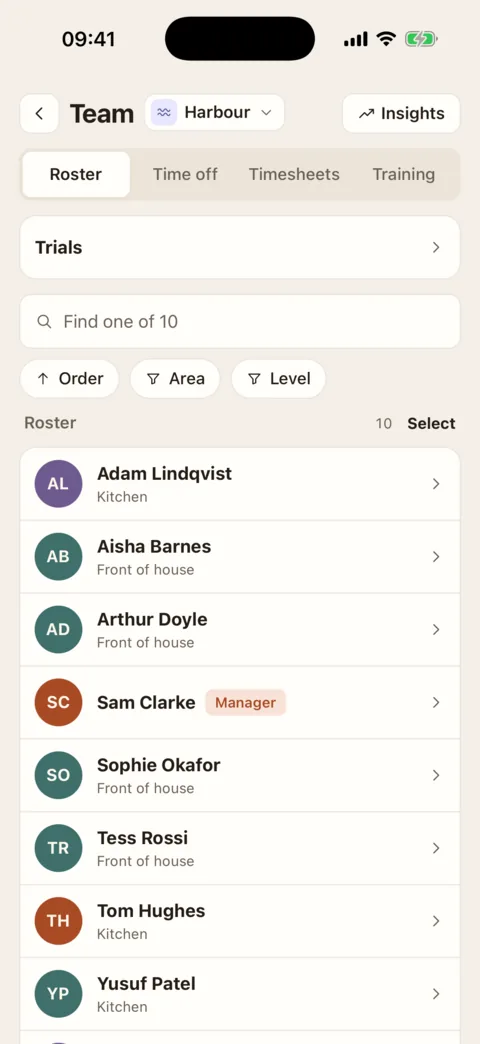
The roster. Tap a person to open them. Demo data - Tap the pencil beside their name. A sheet headed Edit and their name opens.
- Change what you need: Employment type, Works at and Areas. Turning Active off under Status starts offboarding.
- Press Save changes. It says Changes saved.
Their name, phone number, date of birth, contract and position are changed on the web.
Areas and position
Areas are the parts of the site the person works. The rota only offers someone for shifts in their areas, so give everyone at least one. Tick every area they work; someone at two sites has a row of areas for each.
Position is their job. A person has one position at each site: picking another swaps it.
What the person can change themselves
People keep their own personal details, emergency contact and payroll details up to date from their profile. The Employment section (start date, holiday, right to work) is set by a manager: the person sees it marked Set by your manager. Bank details and National Insurance number are changed by the person or by an Admin.
If it doesn’t work
- The boxes are greyed out
- You can open this person and cannot edit them. Editing takes the “Edit staff details and where they work” permission at a site they work at.
- “This person isn’t on your team.” or, on the phone, “Not on your team”
- They do not work at a site you look after.
- “Could not save”
- The change was refused. The usual reason is that the person does not work at a site you run. If you were changing pay, see Set someone’s pay.
- “Phone number”, with a reason
- The number is not one the app can read. Type it again in full; nothing else on the tab is saved until it is right or the box is empty.
- “No areas to pick yet — give them a home location, and that site some areas.”
- The site they work at has no areas set up. Press Add areas beside the message to set them up, then come back.
- You cannot set the contract back to “Not set”
- A contract can be set or changed, not removed. Pick the one that fits; Zero hours has no hours a week to enter.
- On the phone: “Contract hours”, with “Between 0 and 168 a week.”
- The hours typed for a salaried person are more than a week has.
Was this the right page?
If it did not answer your question, or the app does not match what it says, email us and we will put it right.