
Find people on the staff list
Search, filter and sort the staff list, choose its columns, see leavers and new starters, and export it.
The staff list is everyone at the sites you look after, one row a person. The web list is a full table; the phone has a shorter roster for finding someone quickly.
On the web
Go to Rota & team, then Staff
The page shows the location you have chosen: it says Staff at this location. With all locations chosen it says Everyone, all sites. Above the table are four figures for the people shown: Headcount, Average tenure, Turnover, last 12 months and Leavers, last 12 months.
- Choose who is listed. The menu at the start of the toolbar begins on All current. Change it to New (started in the last 30 days), Leaving (a last day is set), Left or Everyone. Each choice shows how many people it holds.
- Search. Type in Search people: a name, a preferred name, an email, a phone number or a payroll ID.
- Filter. Press a filter button, such as Level, Area, Position or Status, and tick the values to keep. Clear takes the filters off.
- Sort. Click a column heading.
- Choose the columns. Press Columns and switch on the ones you want. Many start switched off, among them Also works at, Contract, Started, Last day, Email and Phone. Your choice is remembered in your browser.
- Open someone. Click their name.
Export the list
Press Export. It says Export downloaded and saves a CSV file. To export only some people, tick them, press Bulk actions and choose Export. Exporting is for people who edit staff details.
On the phone
- Open Team. If it is not on the bar, it is a row under Me. The first section is Roster.
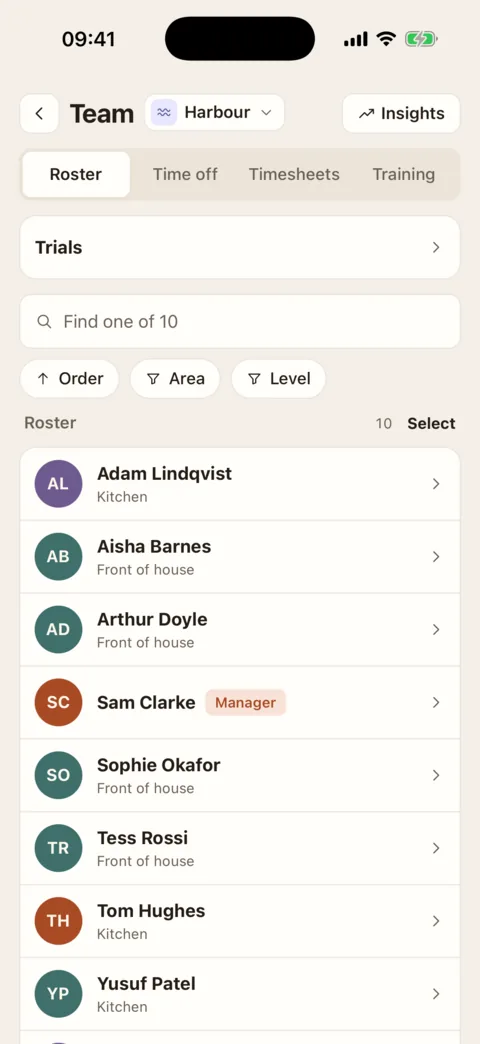
The roster, with its search box and filters. Demo data - Type in the search box, or narrow the list with the Area and Level buttons. A Position button is there too once the site has positions.
- Tap a person to open them.
The roster is the people who work at the location chosen at the top of the screen, and lists current staff only. Leavers, the table’s other columns and the export are on the web.
What you see depends on your permissions
- Pay (Paid, Pay, Salary, Pay review) is for people with “See and edit staff pay rates”.
- The employment file (right to work, payroll ID, reason for leaving, probation, how complete each profile is) and the export are for people with “Edit staff details and where they work”.
- A Supervisor with “See staff contact details and dates of birth” gets the same table without those.
- Managers and Supervisors see the people at the sites they work at; Admins see every site.
To act on several people at once, see Change several people at once.
If it doesn’t work
- Someone is missing
- Check the location chosen, then the first menu: someone who has left is only under Left or Everyone. Then check for a filter or a search still on, and press Clear search and filters if the table offers it. Someone who has been invited and has not joined yet is under Invited, not joined above the table.
- “Nobody here.”, “Nobody new.”, “Nobody leaving.” or “Nobody has left.”
- There is nobody in the group picked in the first menu at this location.
- There is no Staff page in the sidebar
- The page is for people who edit staff details, see contact details, see pay, invite staff or change permissions. An Employee does not have it.
- A column you want is not under Columns
- It is one your permissions do not include, or one that only appears when it has something to show, such as Onboarding.
Was this the right page?
If it did not answer your question, or the app does not match what it says, email us and we will put it right.