
Do a check on the phone
Open one of the day’s checks on your iPhone, record what it asks for and mark it complete, with or without a signal.
On this page
A check is something your restaurant has asked to be recorded: an opening checklist, fridge temperatures, a delivery. Yes Chef keeps the record you make. What has to be checked, and keeping those records, stays your restaurant’s responsibility.
Find the check
- If you have a Checks tab, open Checks. If it is not on the bar, it is the Checks row under Me. The list is the day’s checks, in the parts of the day they belong to.
- If you do not, open Today while you are on shift. The checks for your shift are under Shift checks. They are also on the shift’s own screen.
Each row says where the check stands: Due now, when it opens, how long it is open until, or how late it is.
Do the check
- Tap the check. Its screen has the check’s name, any instructions, when it is due or open until, and under Record everything it asks for.
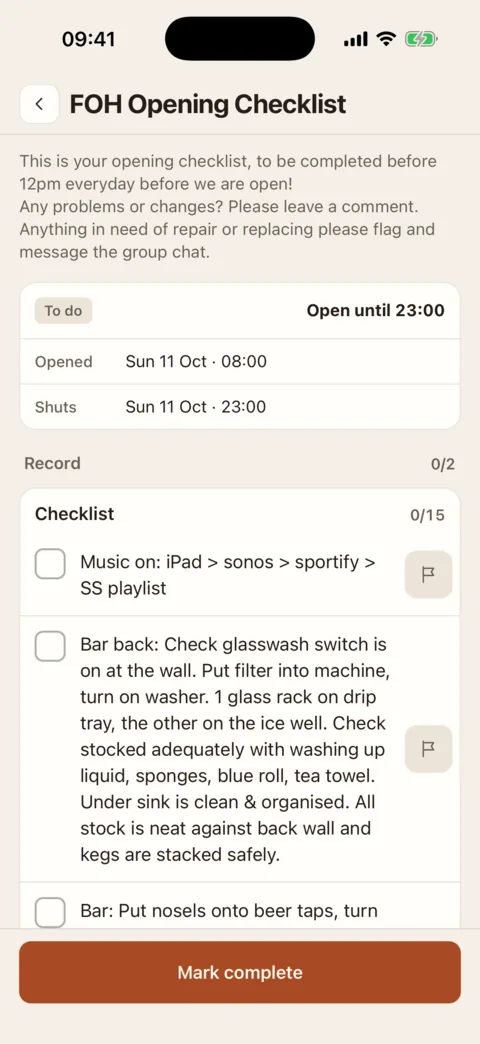
A checklist. Tick each item, or flag one that was not done. Demo data - Fill in each part. What you see depends on the check:
- A list to tick. Tick each item as you do it. For one that was not done, press its flag and say why.
- Pass or fail. Press Pass or Fail (some say Yes and No). A fail may ask for a note.
- A reading. Type the number, or use the plus and minus key. A reading outside the check’s limits is marked Out of range.
- A table. Press Add row for each thing you record.
- A photo. Press Take photo.
- Add anything worth saying under Notes · optional, such as what you did about a warm fridge.
- Press Mark complete. It says Check done and takes you back to the list, where the row now has the time and your first name.
When something is wrong
Record what you found, not what it should have been. An out-of-range reading or a failed item can still be completed, unless the check has been set up to need an action first: then it shows Action needed, and you press Raise action to say what needs doing, by when and by whom. That creates a task linked to the check.
Without a signal
You can do a check offline if it was already on your phone. When you mark it complete it says Saved on this phone, and the row shows Waiting to send. It is sent by itself when the connection is back or the app is next opened.
After it is done
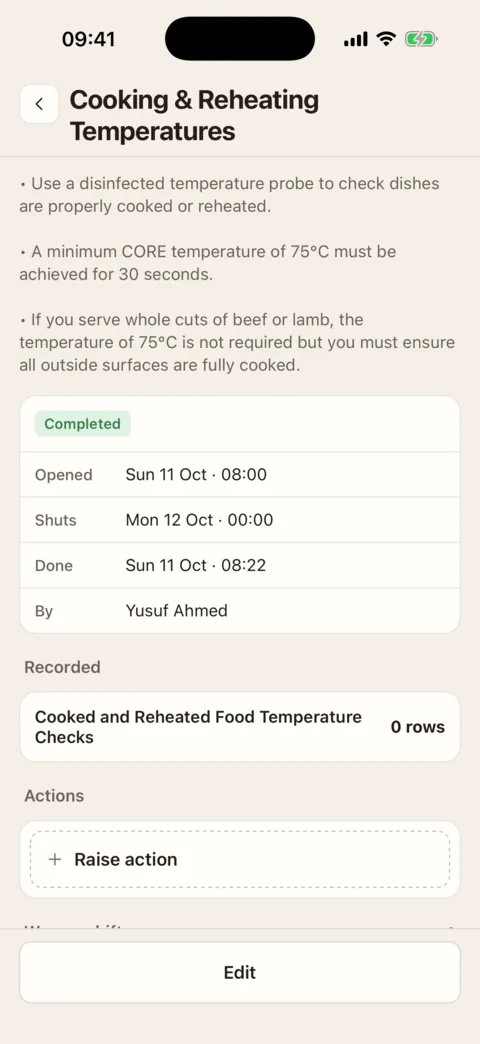
If you typed something wrong, open the check and press Edit. You can edit a check you completed; people with the “Run the day’s checks” permission can edit anyone’s. The time it was completed does not change, and the change is kept in the check’s edit history.
If it doesn’t work
- “Not due yet”
- The check is set to warn when it is done early. Press Do it now if you mean to, or Cancel and come back when it opens.
- “Lapsed · a manager can fill it in late”
- The check was missed. Someone with the “Run the day’s checks” permission (Supervisors, Location Managers and Admins by default) can open it and press Fill in late. It is then recorded as completed late.
- It will not complete, and something is marked as needed
- A part the check requires is missing: a photo, a note on a fail, an action, or an item neither ticked nor flagged. Fill it in and press Mark complete again.
- “Sign on the web dashboard”
- The check asks for a signature, and the phone cannot take one. Complete it on the web.
- It says the check is already done
- Someone else completed it first. The message says who, and when.
- “Not on this phone”
- You are offline and this check was never loaded on this phone. It opens when you are back online.
- “Check not sent”
- A check you did offline was refused when it was sent. The check shows the reason, with Send again and Discard.
Was this the right page?
If it did not answer your question, or the app does not match what it says, email us and we will put it right.